CODEx Codex Beginner Guide
2026-04 GPT-5.5 Update

Codex Beginner Guide

Updated: 2026-04-27 | Author: MaynorAI

Overview: this page adds the latest GPT-5.5 information and covers Codex positioning, access paths, core concepts, feature configuration, MCP, memory, code management, and practical workflows, helping you quickly understand Threads, Plan Mode, Skills, and related mechanisms.

Important

How to Get Codex

Official Subscription

Requires your own network access. Closest to the official experience.

Third-party Relay

No self-managed network access required. The Codex&GPTimage2 bundle is suitable for getting started quickly.

Desktop App

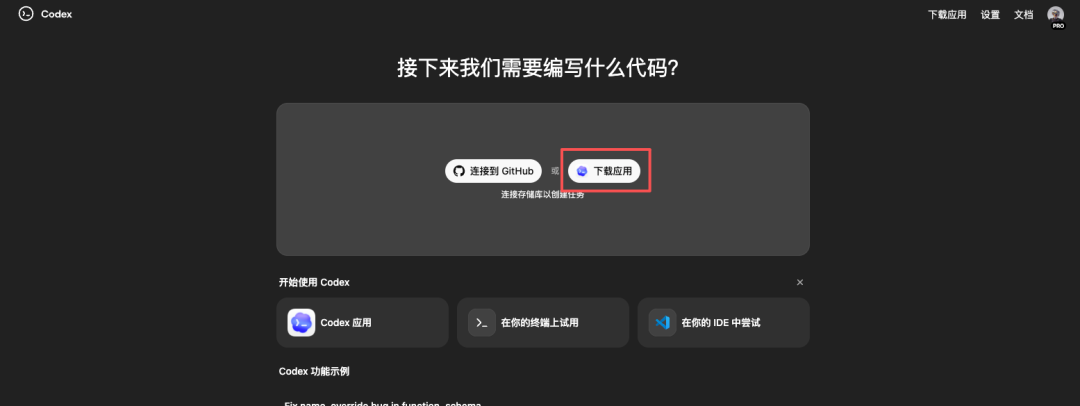
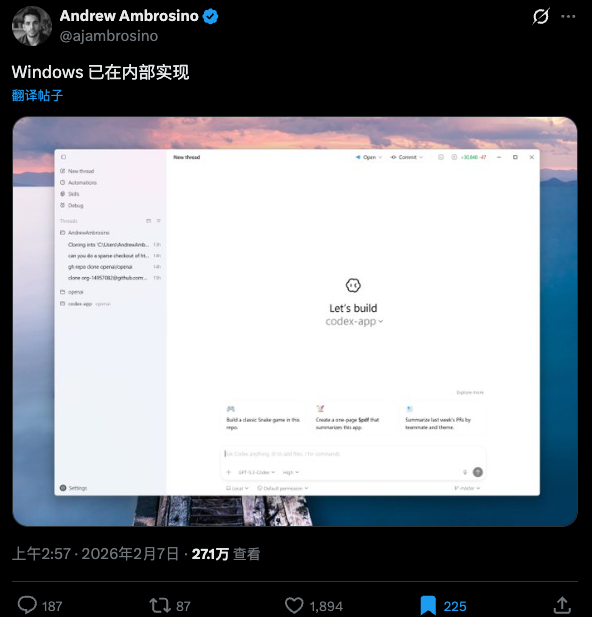
Install the Codex Desktop App first, then sign in or configure access using one of the options above.

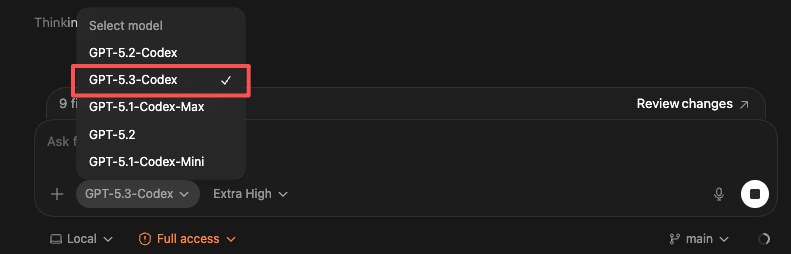
GPT-5.5 OpenAI latest flagship model and the new primary Codex choice
2-layer Structure Workspace folders plus task Threads reduce context pollution
Plan + Skills Plan first, then implement; complex projects become more stable
01 Access

Understand what it is, then choose how to access it

This section separates official subscription, cc-switch relay setup, and desktop app installation paths.

What Codex Is

Codex is OpenAI’s coding agent product. Like Claude Code, it is not just chat; it advances work around project folders, Threads, and execution capabilities. GPT-5.5 further improves reasoning, code editing, and verification loops.

Codex = Coding Agent GPT-5.5 = Latest flagship model Stronger engineering execution Closer to a general agent
Codex Model overview image

Model overview image

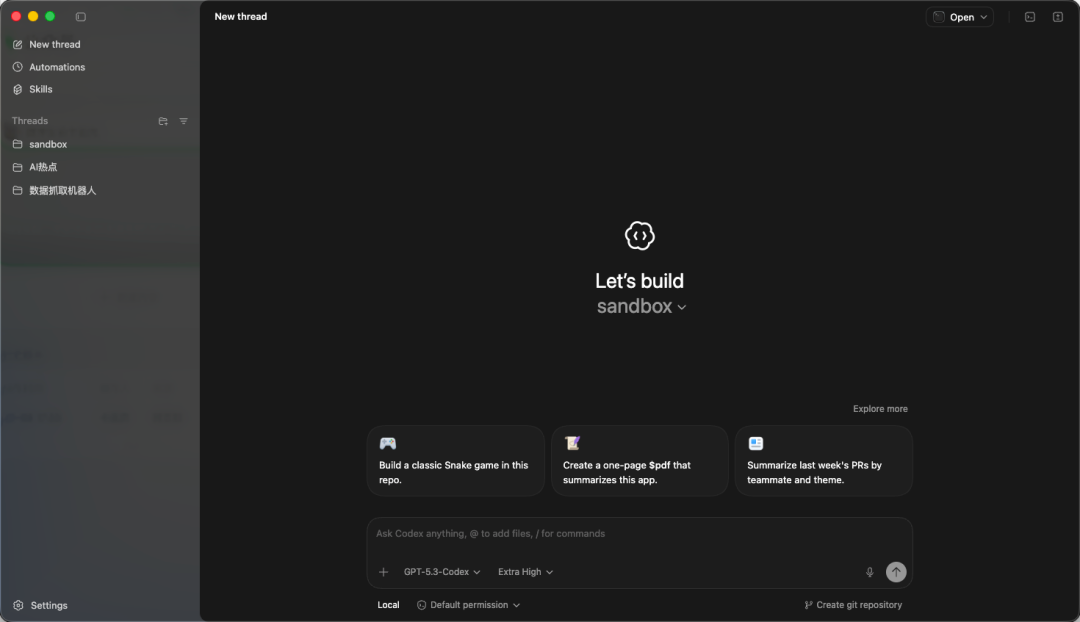
Codex home screen

Codex home screen

Latest GPT-5.5 Changes

OpenAI released GPT-5.5 on 2026-04-23 and positioned it as the latest flagship and strongest agentic coding model. For Codex, focus on three points:

  • Plus / Pro / Business / Enterprise can use it in ChatGPT and Codex
  • Codex also covers Edu / Go and supports a 400K-token context window
  • Fast mode is about 1.5x faster, with about 2.5x token cost

Option 1: Official Subscription

Codex $20 top-up link. Requires your own network access and is closer to the official experience.

Download app button

Download app button

Mac installer screen

Mac installer screen

Option 2: Third-party Relay and cc-switch

The Codex&GPTimage2 bundle and relay configuration do not require self-managed network access. They are third-party relay options.

Step Description Link
1 Download and install GitHub
2 Configure third-party relay API (no self-managed network access required) Relay quota
3 Detailed setup guide Feishu doc
02 Concepts

Understand Threads to really use Codex

The important part is not an install command, but the way work is organized: folders are workspaces, and Threads are task lines.

Two-layer Structure

Layer Name Purpose
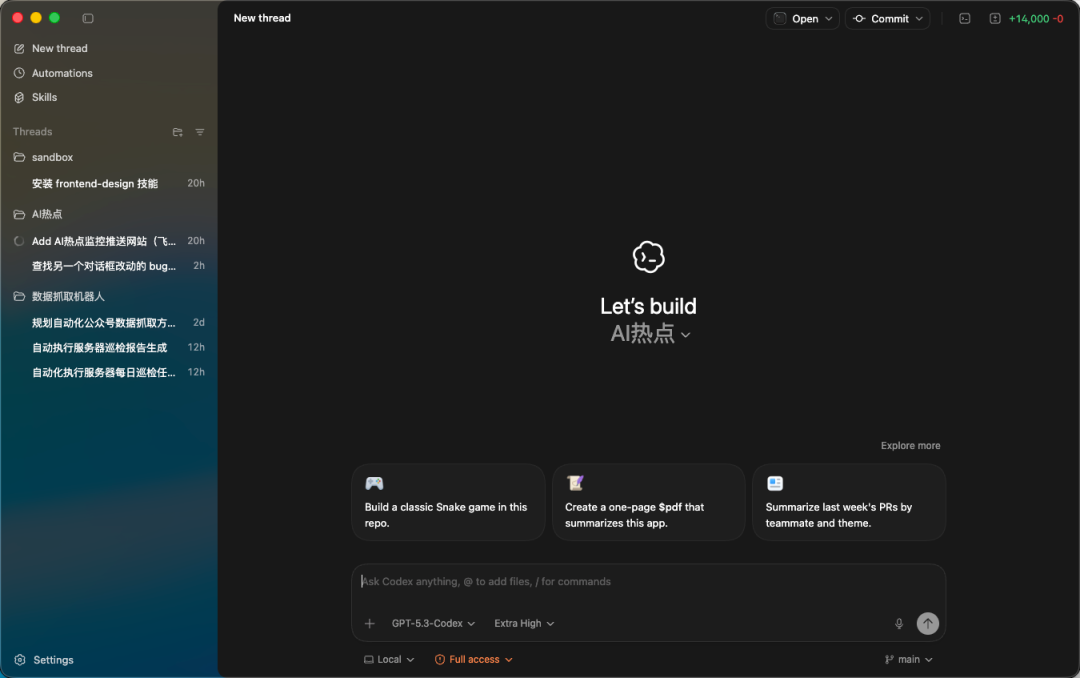
Layer 1 Folder / workspace Contains project files, materials, and code
Layer 2 Thread A task conversation focused on one goal

Why it is designed this way

  • Put different tasks into different Threads to reduce context bleed
  • Separate files from process so paths are easier to find
  • Easier to resume after interruptions without mixing everything together
  • Supports parallel goals inside one project

Golden rule: one broad direction per folder, and one concrete task per Thread.

Threads home screen

Threads home screen

Add project folder entry

Add project folder entry

Open a Thread after adding a project

Open a Thread after adding a project

03 Project Management

Organize folders first, then optimize efficiency

Start by separating directory layers: learning materials, real projects, sandboxes, and reusable tools.

Recommended structure

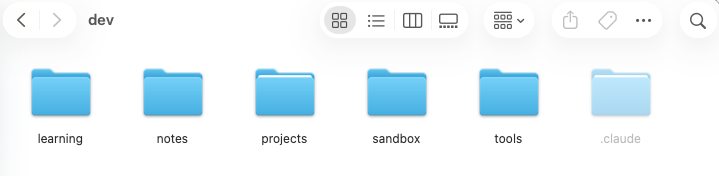
dev/ ├── Learning/ ├── notes/ ├── Projects/ ├── sandbox/ └── tools/

Management Principles

  • Do not open random Threads for every conversation
  • Keep real development projects under Projects
  • The workspace holds files; the Thread advances the goal
  • Good upfront classification prevents chaos later
Recommended folder structure

Recommended folder structure

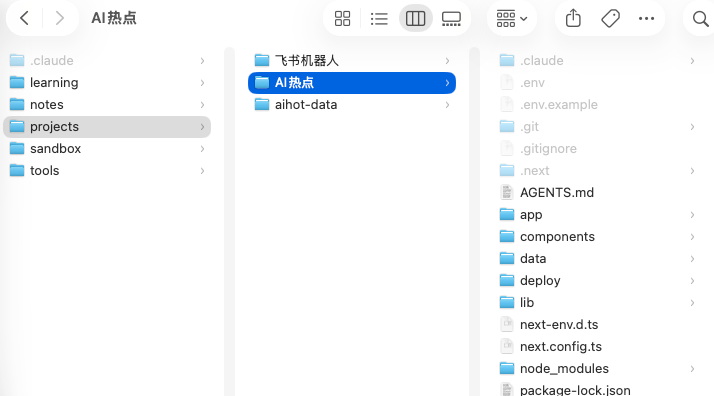
Projects example

Projects example

Feishu bot example

Feishu bot example

04 Features

Graphical capabilities are a major reason Codex is beginner-friendly

Codex is not only command execution. It also gives graphical entries for scheduled tasks, Skills, global rules, and permissions.

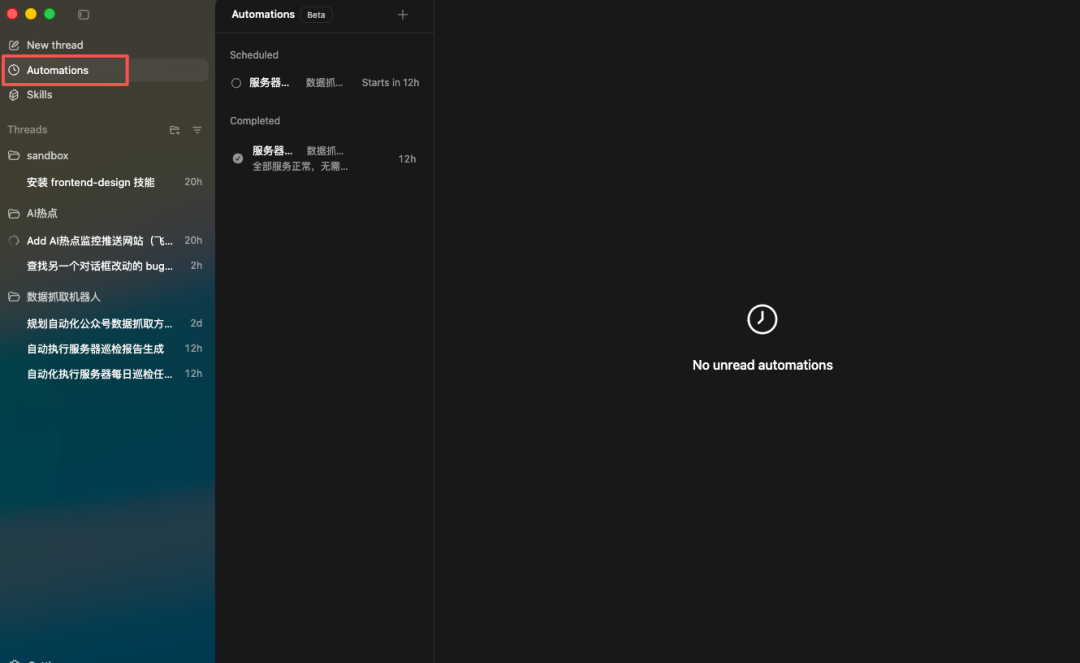
Scheduled Tasks

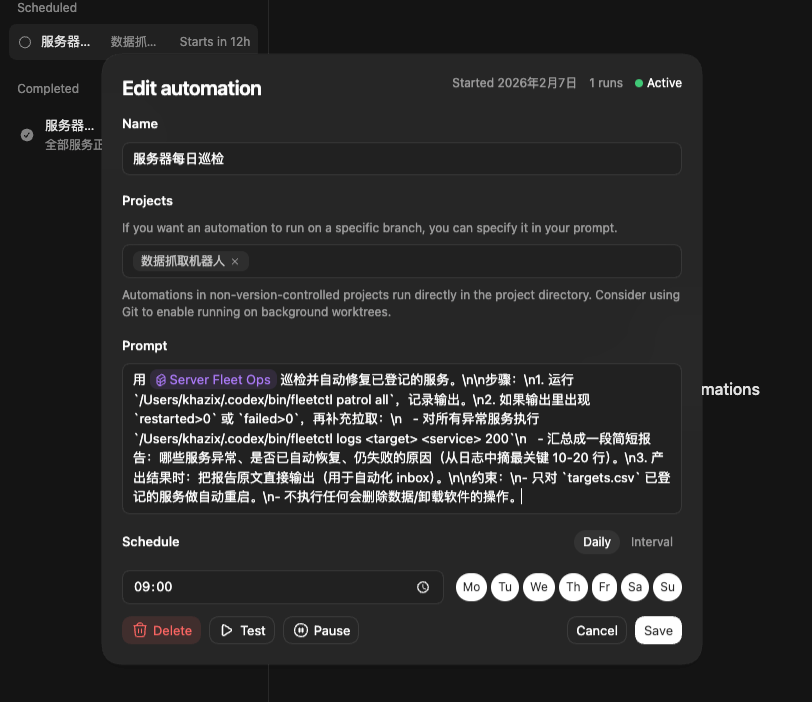
Schedule server checks, auto-fix issues, and send summaries through bots.

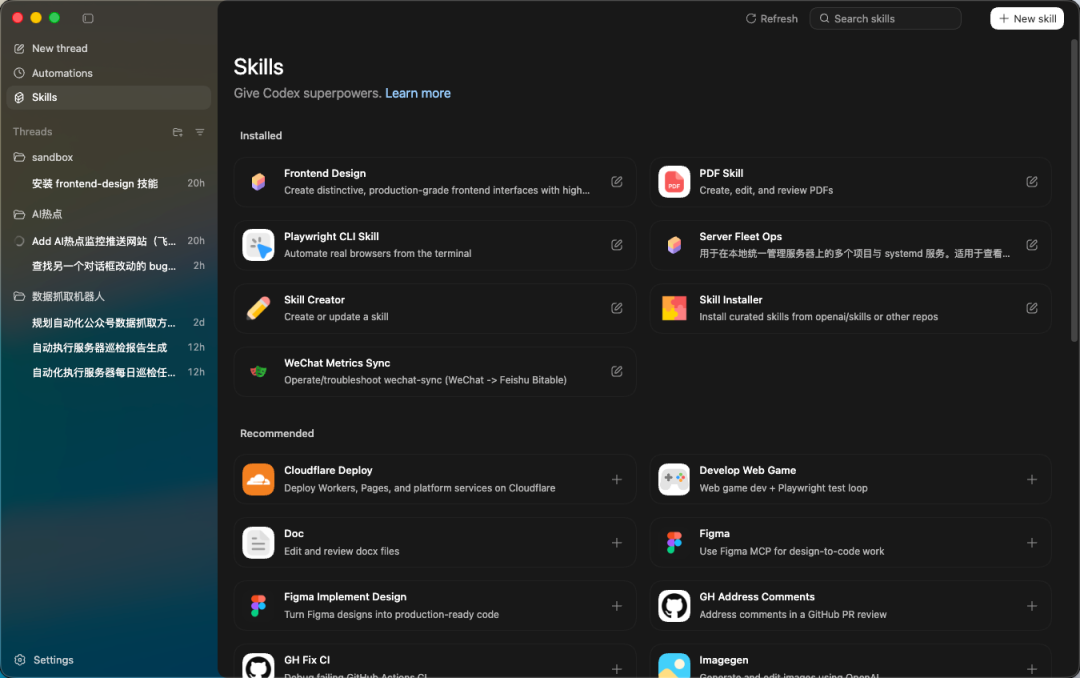
Skills

Graphically manage Skills, which is easier to understand and maintain than pure CLI workflows.

Skill Creator

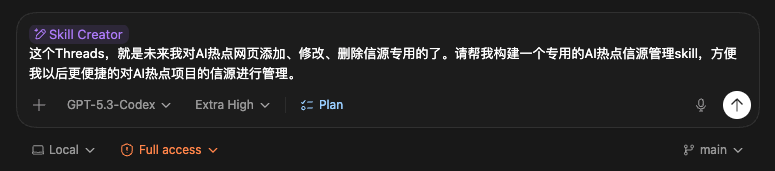
Create Skills with natural language, which is friendly for new users.

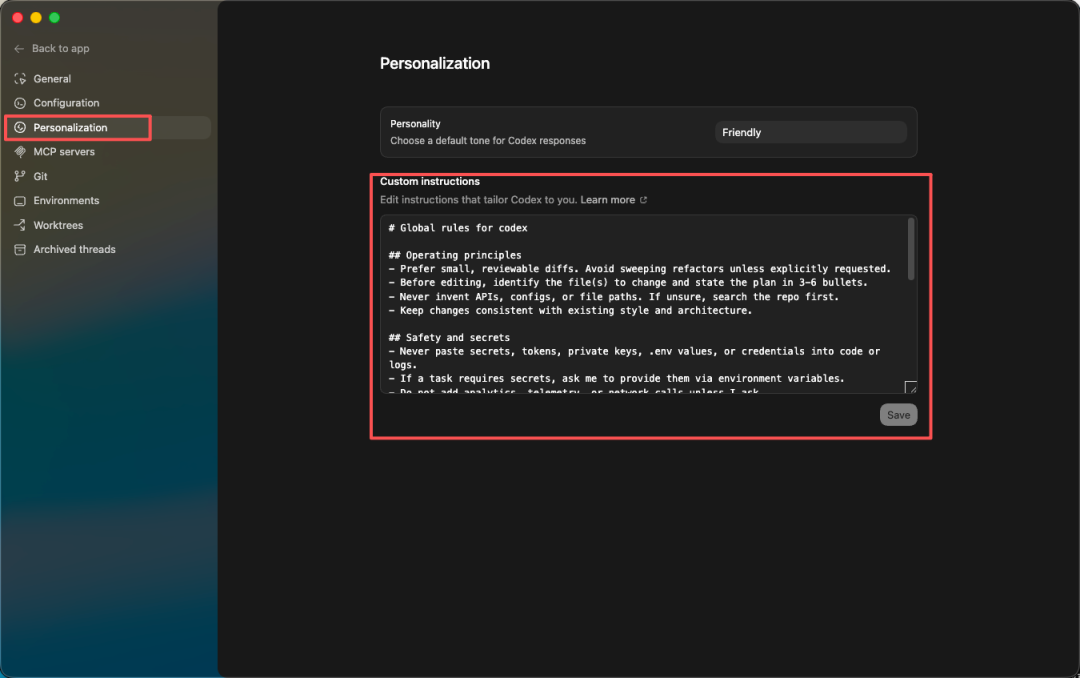
Personalization

Equivalent to a graphical `AGENTS.md`; set global rules and collaboration preferences.

MCP

Connect Codex to browsers, databases, GitHub, file systems, and other tools or data sources.

Memory

Persist long-term preferences, output formats, and project rules so collaboration stays consistent.

Cloud Runs

Useful when local machines cannot run long jobs or when you want async progress.

Computer Automation

Can operate browsers, inspect pages, fill forms, and handle repetitive actions, but permissions matter.

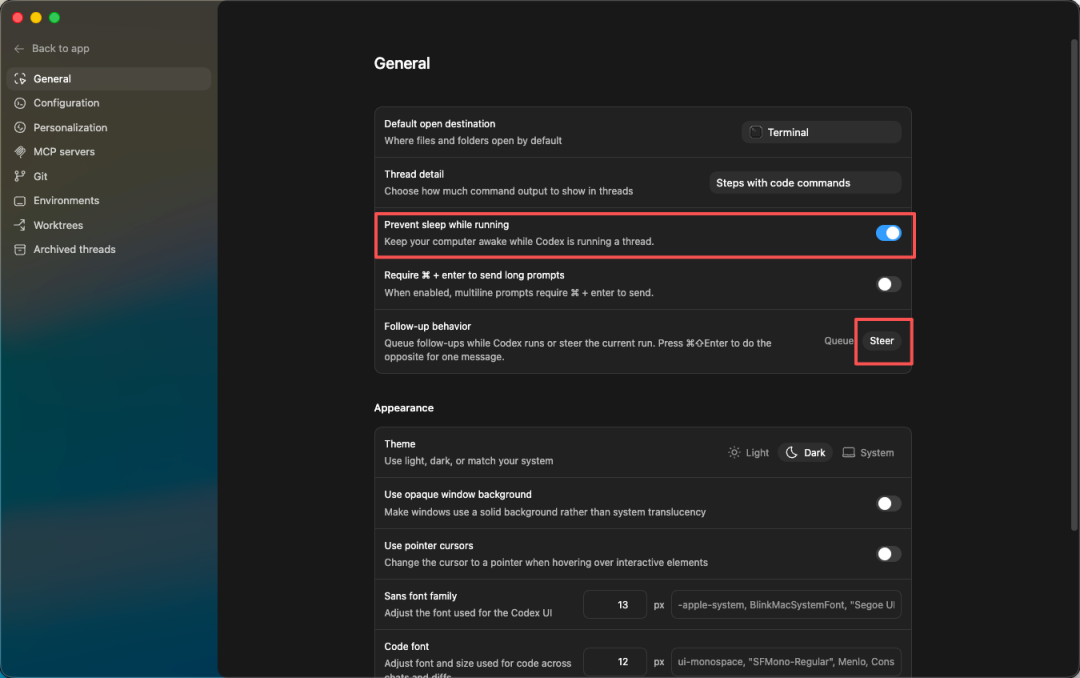
General Recommendations

  • Keep computer awake: on
  • Follow-up behavior: `steer`

Permission Advice

  • Set home permission to `Full access`
  • Reduce repeated confirmations and improve execution flow

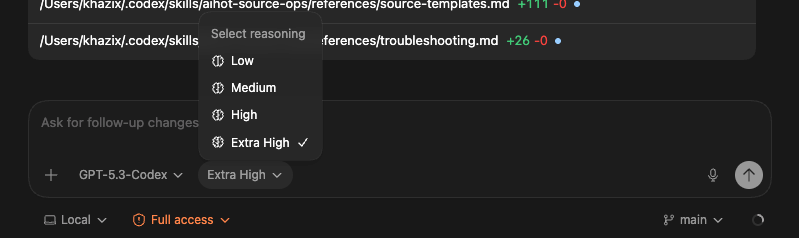
Reasoning Effort

  • Daily development: `High`
  • Hard / complex / large work: `Extra High`
Scheduled Tasks UI

Scheduled Tasks UI

Scheduled Tasks result

Scheduled Tasks result

Skills UI

Skills UI

New Skill button

New Skill button

Skill Creator input UI

Skill Creator input UI

General settings

General settings

Personalization settings

Personalization settings

Full access permission setting

Full access permission setting

05 Workflow

Recommended workflow: start small, then Plan, then inspect the diff

This section follows real usage habits instead of the old CLI-style tutorial.

STEP 0

First Task

Start with a small, verifiable task: add a project folder, create a Thread, describe the goal, confirm the plan, then preview the result.

Open App -> Add project folder -> Create Thread -> Describe small goal -> Check result
STEP 1

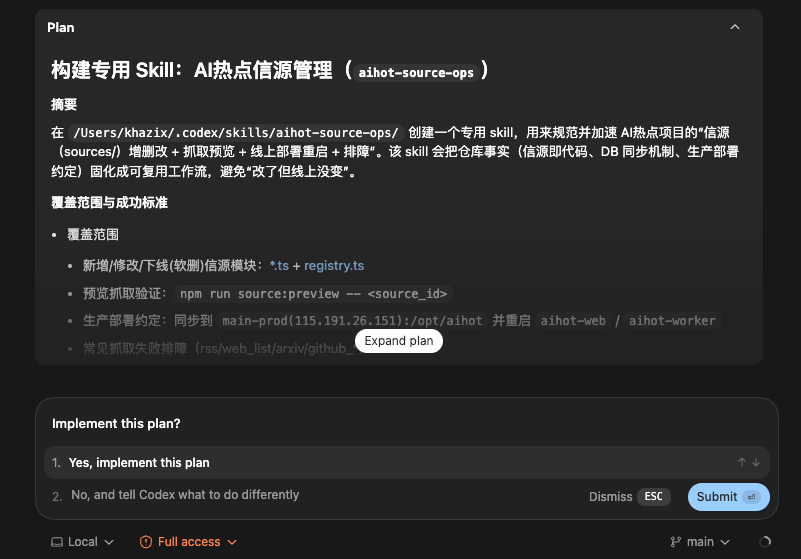
Plan Mode

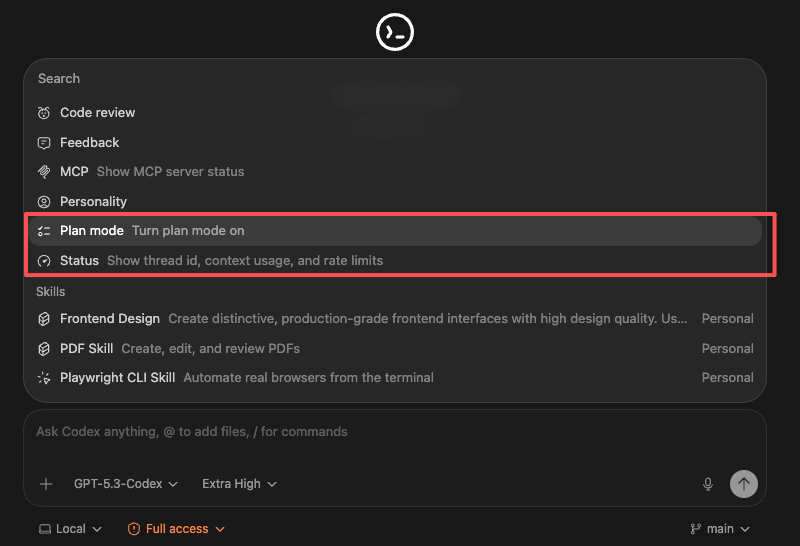
For large projects, enter `/plan` first. Plan only; do not rush into coding. Confirm execution after the plan stabilizes.

Large project -> Plan first -> Create spec and implementation plan -> Then implement
STEP 2

Status and reasoning levels

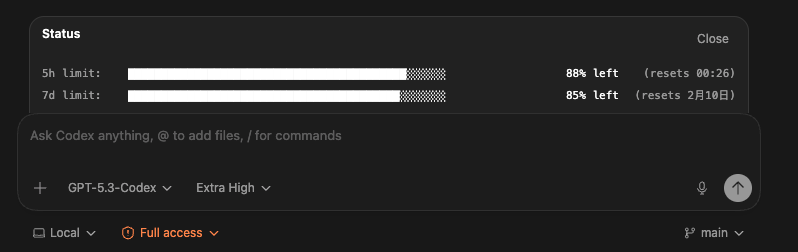
Use `/status` to check current usage. Use High for normal work and Extra High when you need more stability.

/status Low / Medium / High / Extra High
STEP 3

Describe requirements by voice or text

For complex tasks, you can describe requirements by voice. Clear requirements matter more than prompt stacking.

STEP 4

Watch frontend results separately

Check frontend output immediately. If it is bad, redo it instead of accepting it.

STEP 5

Code Management

Before Codex edits code, ask for files and plan. After edits, inspect the diff, run the smallest relevant check, then commit.

Say which files first -> Review git diff -> Run minimum check -> Then commit
Plan Mode icon

Plan Mode icon

Plan Mode example

Plan Mode example

Plan output

Plan output

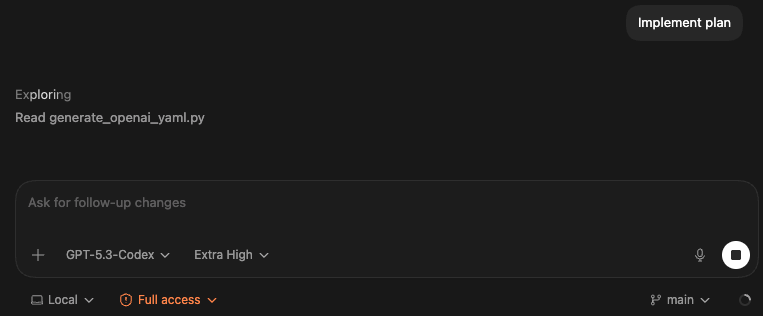
Enter implementation state

Enter implementation state

Reasoning Effort UI

Reasoning Effort UI

Voice input workflow

Voice input workflow

06 Commands

Common slash commands and parallel development habits

`/plan`

Enter planning mode; good for large from-zero tasks.

`/status`

Check usage and remaining quota for the current cycle.

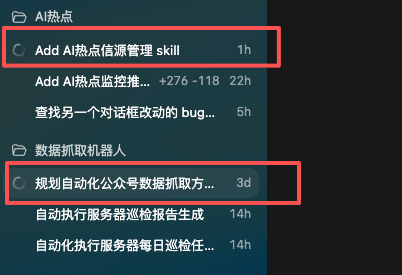
Parallel Threads

Advance multiple Threads at the same time to improve parallel development efficiency.

Slash command UI

Slash command UI

Status usage UI

Status usage UI

Parallel Threads development

Parallel Threads development

Frontend capability note

Frontend capability note

08 Summary

Using AI to write code will become as basic as using Excel

For programmers, Codex is a productivity tool. For non-programmers, it can remove a barrier that used to be hard to cross. The real key is not whether you can write prompts, but whether you can organize tasks, constrain goals, and check results.

09 Quick Reference

Turn common settings into a quick reference

Item Recommended value / conclusion Description
Core model GPT-5.5 OpenAI latest flagship model; GPT-5.3-codex was the earlier common Codex association
Follow-up behavior steer Useful for steering tasks during development
Permission Full access Reduces repeated confirmations and enables smoother execution
Daily reasoning level Medium Start with the default level for better speed and cost balance
Complex task level High / Extra High Use for difficult, hard, or large tasks; mind cost and speed
Common commands `/plan`、`/status` One plans work; one checks resource usage
Code Management Inspect diff before commit Small task, small commit; avoid mixing unrelated changes
Advanced capabilities MCP / memory / cloud / automation Master the basic workflow before connecting advanced capabilities